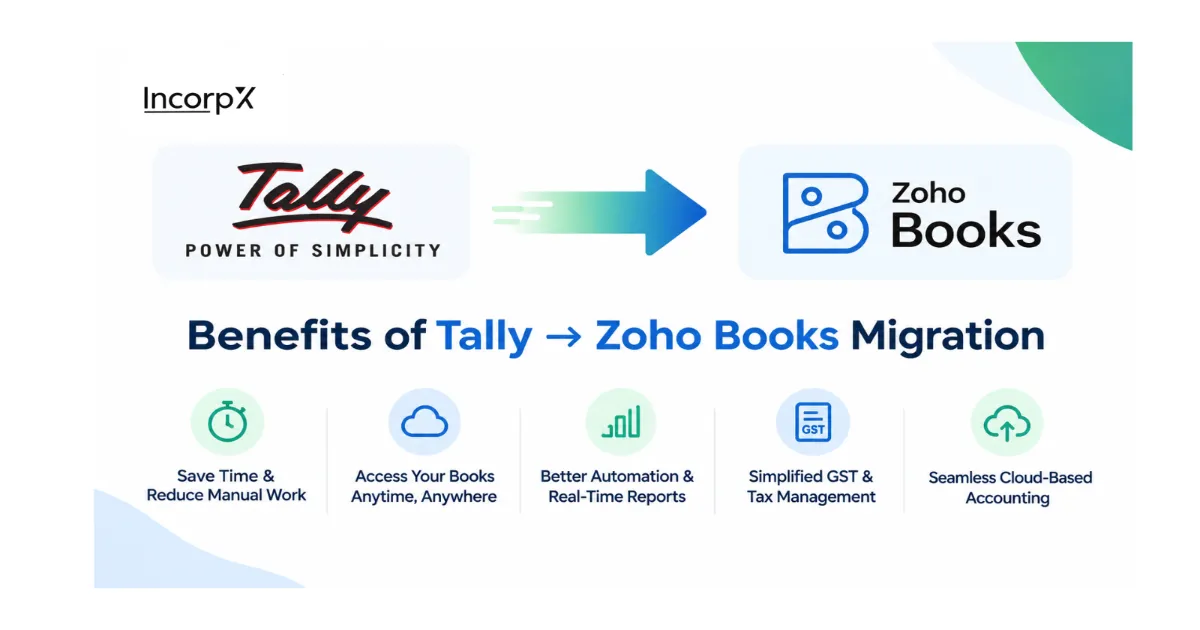
Migrating from Tally to Zoho Books means moving all your accounting data, your chart of accounts, contacts, items, opening balances, and transactions, from Tally into Zoho Books so you can run your books in the cloud. You do it by exporting a few reports from Tally and importing them into Zoho Books in a set order, then checking that your balances match. This guide walks through every step in plain language, based on Zoho's own migration process, so you can switch over without losing any data.
- Everything can move across: chart of accounts, customers, vendors, items, opening balances, and transactions.
- Start by exporting four Tally reports: Stock Summary, Master Data, Voucher Data, and Trial Balance.
- Set up taxes and GST first in Zoho Books, so imported invoices and bills pick up the right tax.
- Follow the import order: accounts and contacts, then opening balances, then transactions.
- Two checks confirm success: total debits equal total credits, and Opening Balance Adjustments is zero.
- The start of a financial year is the easiest time to migrate, using the 31 March trial balance.
What Does Migrating from Tally to Zoho Books Involve?
Migrating from Tally to Zoho Books involves exporting your data from Tally, setting up your Zoho Books organisation, importing your accounts, contacts, items, and opening balances, and then importing your transactions in order. It is a set sequence, not guesswork.
Tally is desktop accounting software, while Zoho Books is cloud-based, so the move is about transferring your records from one to the other cleanly. The whole process breaks into three broad stages: prepare and export your Tally data, set up Zoho Books and import your master records, then bring in your opening balances and transactions. If your books are simple, this can take a few hours; larger or more complex data can take a day or two. Because Zoho Books gives you online access, automated bank feeds, and direct GST filing, many Indian businesses make the switch for the convenience, and pair it with professional monthly bookkeeping to keep the new books clean.
What Are the Matching Terms in Tally and Zoho Books?
Several accounting terms are named differently in the two systems: the Account Masters in Tally is the Chart of Accounts in Zoho Books, and Sundry Debtors and Sundry Creditors become Accounts Receivable and Accounts Payable. Knowing these makes the migration far easier to follow.
Here is how the main terms line up.
| Tally | Zoho Books |
|---|---|
| Account Masters | Chart of Accounts |
| Sundry Debtors | Accounts Receivable |
| Sundry Creditors | Accounts Payable |
| Quotation / Proforma Invoice | Quote |
| Receipt Vouchers | Payments Received |
| Payment Vouchers | Payments Made |
| Debit Note | Vendor Credits |
When a step tells you to import your Payments Received, for example, you now know that is your Receipt Vouchers from Tally.
Which Reports Do You Export from Tally First?
Before anything else, export four reports from Tally: the Stock Summary for initial stock, the Master Data for your chart of accounts, taxes, contacts, and items, the Voucher Data for all transactions, and the Trial Balance for closing balances. These four files feed the whole migration.
Preparing your data first is what makes the rest of the process smooth. Each report has a job: the Stock Summary gives your opening stock, the Master Data gives your accounts and contacts, the Voucher Data gives your transactions, and the Trial Balance gives your account balances. Timing matters here. If you migrate at the start of a financial year, say 1 April, export the Stock Summary and Trial Balance as on 31 March, and export the Voucher Data for the financial year just ended. A clear cut-off date keeps everything easy to reconcile.
How Do You Set Up Zoho Books Before Importing?
Set up your Zoho Books organisation profile first, then add your tax rates and, if registered, your GST details, so every imported transaction picks up the correct tax treatment. This groundwork prevents corrections later.
After signing up, go to Settings, select Profile under Organization, fill in your organisation details, and save. Then add the taxes your business deals with under Settings, then Taxes, then Tax Rates. If your business is registered for GST, open GST Settings, select Yes for the GST-registered option, and enter your 15-digit GSTIN along with the other details. Getting taxes and GST right before you import means your invoices and bills carry the correct tax from the start, rather than needing to be fixed one by one afterwards.
How Do You Import Your Chart of Accounts, Contacts, and Items?
Import your master records in this order: the chart of accounts first, then customers and vendors, then items, using Zoho Books' import tool for each module. These form the foundation everything else attaches to.
Work through them one at a time:
- Chart of accounts: go to the Accountant module, select Chart of Accounts, click the gear icon, choose Import Chart of Accounts, then upload, map fields, preview, and import. Afterwards, confirm your bank accounts imported correctly, because opening balances depend on it.
- Customers and vendors: import your contacts with the mandatory fields, Display Name, Contact Type, GST Treatment, GSTIN, and Currency. You can include each contact's opening balance in the same file to save work later.
- Items: if you track stock, enable inventory first under Settings, then Items, with the Inventory Start Date matching your opening balance date. Then import items with fields like Product Type, Item Type, Sales Rate, and Purchase Rate, plus Opening Stock for inventory items.
When you import customers and vendors, add their opening balances in the same import file and map them to the matching field in Zoho Books. This small step means you do not have to prepare a separate file for accounts receivable and payable when you enter opening balances later, and it keeps every contact's outstanding amount tied to the right record from the start.
How Do You Enter Opening Balances from Tally?
Run the Tally Trial Balance as on 31 March, or your migration date if mid-year, then in Zoho Books go to Settings, Opening Balances, set the migration date, and enter the debits and credits for each account. This carries your closing position across.
Your opening balances in Zoho Books are simply the closing balances from Tally on the day you switch. Before you enter them, make sure you have already imported your chart of accounts, your customers and vendors, and your items with their opening stock. Then set the Migration Date to match your trial balance date, import the accounts receivable and payable balances, and enter the asset, expense, and liability balances. Two simple checks confirm you have done it right: the total debits and total credits must be equal, and the Opening Balance Adjustments account must show zero.
How Do You Import Transactions in the Right Order?
Import transactions in this order: Projects, then Purchase transactions, then Sales transactions, then Manual Journals, filling in all mandatory fields and mapping them correctly. The order matters because later records link back to earlier ones.
Zoho Books has separate modules for each type. Under purchases you have expenses, bills, purchase orders, and payments made; under sales you have quotes, invoices, sales orders, and payments received. Import only the modules your business actually uses. For manual journals, remember that Zoho Books is a double-entry system, so the total debit and credit for each journal must be equal. Keeping to the order, and mapping fields carefully, is what keeps your transactions connected and your reports accurate.
How Do You Finish and Check the Migration?
After importing, sync any backdated transactions with your opening balances under Settings, then Opening Balances, then run the Trial Balance and confirm it matches your old Tally records. This final check closes the process.
If you imported transactions dated on or before the migration date, Zoho Books lists them as backdated under Settings, then Opening Balances, and you click Sync so they line up with your opening balances. Once synced, run your Trial Balance report and compare it with Tally: the numbers should match, total debits should equal total credits, and the Opening Balance Adjustments account should be zero. When those line up, your migration is complete, and you can start using features like automated bank feeds, GST filing, and online payments. ProTax, as an official Zoho partner, can set up and run your books on Zoho Books through Zoho Books accounting services, or handle the full migration for you.
Summary
Moving from Tally to Zoho Books is a clear, repeatable process: export the Stock Summary, Master Data, Voucher Data, and Trial Balance from Tally, set up your Zoho Books organisation with taxes and GST, then import your chart of accounts, contacts, and items. Enter your opening balances from the Tally trial balance, import your transactions in the order of Projects, Purchases, Sales, and Manual Journals, and finally sync and verify that your numbers match. The cleanest time to switch is the start of a financial year. Do the checks at the end, total debits equal total credits and Opening Balance Adjustments at zero, and your books will carry over accurately. If you would rather have it done for you, ProTax can handle the migration and your ongoing accounting on Zoho Books.
Get Help Migrating to Zoho Books
Frequently Asked Questions
Can I move my data from Tally to Zoho Books?
Yes. You can migrate all your data from Tally to Zoho Books, including the chart of accounts, contacts, items, opening balances, and transactions. The process works by exporting a few reports from Tally and importing them into Zoho Books in a set order. Zoho Books provides import tools for each module, so most businesses can complete the move themselves or with help from an accounting partner.
What data can I import from Tally into Zoho Books?
You can import your chart of accounts (the Account Masters in Tally), customers and vendors, items, opening balances, and all transactions such as invoices, bills, and manual journals. You prepare this by exporting four reports from Tally: the Stock Summary, Master Data, Voucher Data, and Trial Balance. Each of these maps to a specific import in Zoho Books.
What reports do I need to export from Tally first?
You need to export four reports from Tally before you start. The Stock Summary report for initial stock, the Master Data for your chart of accounts, taxes, customers, vendors, and items, the Voucher Data for all transactions, and the Trial Balance report for account closing balances. If you migrate at the start of a financial year, export the Stock Summary and Trial Balance as on 31 March.
What is the Tally equivalent of the Zoho Books Chart of Accounts?
In Tally it is called the Account Masters, and in Zoho Books the same thing is called the Chart of Accounts. Other terms also change: Sundry Debtors become Accounts Receivable, Sundry Creditors become Accounts Payable, Receipt Vouchers become Payments Received, Payment Vouchers become Payments Made, and a Debit Note becomes Vendor Credits. Knowing these equivalents makes the migration much easier to follow.
In what order should I import transactions into Zoho Books?
Import your transactions in this order: Projects first, then Purchase transactions (expenses, bills, purchase orders, payments made), then Sales transactions (quotes, invoices, sales orders, payments received), and finally Manual Journals. Following this order ensures that linked records connect correctly. Always fill in the mandatory fields in the import file and map them to the right fields in Zoho Books.
How do I enter opening balances when moving from Tally?
Run the Trial Balance report in Tally as on 31 March, or on your migration date if switching mid-year, to get the debits and credits for each account. In Zoho Books, go to Settings, then Opening Balances, set the migration date, and enter or import the balances. Two checks confirm you did it right: total debits must equal total credits, and the Opening Balance Adjustments account must be zero.
Do I need to set up GST before importing Tally data?
Yes, it is best to set up taxes and GST first. Add your tax rates under Settings, then Taxes, and if your business is registered for GST, enter your 15-digit GSTIN under GST Settings before importing transactions. Doing this first means every imported invoice and bill picks up the correct tax treatment, which saves you from correcting records later.
When is the best time to migrate from Tally to Zoho Books?
The cleanest time to migrate is at the start of a financial year, on 1 April, because your opening balances come straight from the 31 March trial balance. You can migrate at any time, though; if you switch mid-year, simply generate the Trial Balance on your migration date and use that. Choosing a clear cut-off date keeps your old and new records easy to reconcile.
Is it hard to switch from Tally to Zoho Books?
It is a structured process rather than a difficult one. The main effort is exporting the four Tally reports, formatting the files, and importing each module in the right order, then verifying that balances match. Businesses with clean, simple books often manage it themselves, while those with large data volumes or complex records usually find it faster to have an accounting partner handle the migration.
What should I check after the migration is complete?
After importing everything, sync your backdated transactions with the opening balances under Settings, then Opening Balances, then verify your numbers. Run the Trial Balance report and confirm it matches your old Tally records, that total debits equal total credits, and that the Opening Balance Adjustments account is zero. Once these match, your migration is complete and your books are ready to use.
Frequently Asked Questions
Can I move my data from Tally to Zoho Books?
Yes. You can migrate all your data from Tally to Zoho Books, including the chart of accounts, contacts, items, opening balances, and transactions. The process works by exporting a few reports from Tally and importing them into Zoho Books in a set order. Zoho Books provides import tools for each module, so most businesses can complete the move themselves or with help from an accounting partner.
What data can I import from Tally into Zoho Books?
You can import your chart of accounts (the Account Masters in Tally), customers and vendors, items, opening balances, and all transactions such as invoices, bills, and manual journals. You prepare this by exporting four reports from Tally: the Stock Summary, Master Data, Voucher Data, and Trial Balance. Each of these maps to a specific import in Zoho Books.
What reports do I need to export from Tally first?
You need to export four reports from Tally before you start. The Stock Summary report for initial stock, the Master Data for your chart of accounts, taxes, customers, vendors, and items, the Voucher Data for all transactions, and the Trial Balance report for account closing balances. If you migrate at the start of a financial year, export the Stock Summary and Trial Balance as on 31 March.
What is the Tally equivalent of the Zoho Books Chart of Accounts?
In Tally it is called the Account Masters, and in Zoho Books the same thing is called the Chart of Accounts. Other terms also change: Sundry Debtors become Accounts Receivable, Sundry Creditors become Accounts Payable, Receipt Vouchers become Payments Received, Payment Vouchers become Payments Made, and a Debit Note becomes Vendor Credits. Knowing these equivalents makes the migration much easier to follow.
In what order should I import transactions into Zoho Books?
Import your transactions in this order: Projects first, then Purchase transactions (expenses, bills, purchase orders, payments made), then Sales transactions (quotes, invoices, sales orders, payments received), and finally Manual Journals. Following this order ensures that linked records connect correctly. Always fill in the mandatory fields in the import file and map them to the right fields in Zoho Books.
How do I enter opening balances when moving from Tally?
Run the Trial Balance report in Tally as on 31 March, or on your migration date if switching mid-year, to get the debits and credits for each account. In Zoho Books, go to Settings, then Opening Balances, set the migration date, and enter or import the balances. Two checks confirm you did it right: total debits must equal total credits, and the Opening Balance Adjustments account must be zero.
Do I need to set up GST before importing Tally data?
Yes, it is best to set up taxes and GST first. Add your tax rates under Settings, then Taxes, and if your business is registered for GST, enter your 15-digit GSTIN under GST Settings before importing transactions. Doing this first means every imported invoice and bill picks up the correct tax treatment, which saves you from correcting records later.
When is the best time to migrate from Tally to Zoho Books?
The cleanest time to migrate is at the start of a financial year, on 1 April, because your opening balances come straight from the 31 March trial balance. You can migrate at any time, though; if you switch mid-year, simply generate the Trial Balance on your migration date and use that. Choosing a clear cut-off date keeps your old and new records easy to reconcile.
Is it hard to switch from Tally to Zoho Books?
It is a structured process rather than a difficult one. The main effort is exporting the four Tally reports, formatting the files, and importing each module in the right order, then verifying that balances match. Businesses with clean, simple books often manage it themselves, while those with large data volumes or complex records usually find it faster to have an accounting partner handle the migration.
What should I check after the migration is complete?
After importing everything, sync your backdated transactions with the opening balances under Settings, then Opening Balances, then verify your numbers. Run the Trial Balance report and confirm it matches your old Tally records, that total debits equal total credits, and that the Opening Balance Adjustments account is zero. Once these match, your migration is complete and your books are ready to use.