Contents
- When signing becomes the slowest part of a tender
- Do government tenders require a signature on every page?
- Choose the right signing method
- How to sign PDF pages in a batch with Pro Signer
- Where else can bulk PDF signing help?
- Finish the portal submission after signing
- Checks that prevent avoidable rework
- Questions about signing every PDF page
- Make the next signing batch easier
Preparing a government tender and repeating the same DSC signing steps on every PDF page? Pro Signer by ProTax lets you draw the signature area once, choose the required pages and run a signing batch on your Windows computer. You can also queue multiple PDFs instead of opening and signing each file separately.
The starting point is the tender's signing clause. Some submissions require a digital signature on every page; others specify signed and stamped copies, particular declarations or signing through the procurement portal. Match the workflow to the requirement before preparing the files.
When signing becomes the slowest part of a tender
Consider a bid pack containing a technical proposal, eligibility records, declarations and several annexures. If the relevant PDFs need a signature on every page, a page-by-page process means repeatedly selecting the signing tool, drawing a box, choosing the certificate and saving the result.
Printing everything, signing by hand and scanning it again creates a different workload. Pasting a signature image across the pages may appear quicker, but an image does not create a certificate-based digital signature that the recipient can validate.
Pro Signer is built for the repetitive PDF signing part of this work. Review your documents, set the placement and page selection, then process the batch with your DSC token. The authorised signer still controls the signing decision and any required PIN entry.
Do government tenders require a signature on every page?
Some do. The requirement comes from the particular tender or request for proposal, including its amendments.
For example, DMEO's March 2022 RFP for empanelment of monitoring and evaluation institutions required every page of the electronic submission to be digitally signed by the applicant's authorised representative. Clauses 2.16.1 and 2.16.4 set out the page-signing requirements. This is a documented example, not a rule for all tenders. Read the DMEO RFP.
The Bureau of Indian Standards' September 2024 museum consultancy RFP separately addressed signatures on each page and digital signing at upload. That distinction is a reason to read both the document-preparation clauses and the portal instructions. Read the BIS RFP, clauses 7.6.3 and 7.6.5.
Check who must sign, which files or pages are covered, whether a seal is required and whether any original documents must also be delivered. Obtain clarification from the tender authority where the wording is unclear.
Choose the right signing method
| Method | What it does | What to check |
|---|---|---|
| Handwritten signature followed by scanning | Produces a scanned copy of a physically signed page | Whether the instructions require this format, a seal or delivery of the original |
| Pasted signature image or visual stamp | Adds a visible mark to the PDF | It does not, by itself, create a verifiable DSC signature |
| DSC signing in a PDF application | Applies a certificate-based signature to the electronic file | Required signer, certificate, placement, page selection and recipient acceptance |
| Signing within the procurement portal | Completes the signing stage built into that portal | Whether signed attachments are also required and what completes submission |
Adobe explains that certificate signatures support verification of the signer and document integrity. Its guidance also distinguishes visible and hidden signatures. The appearance of a signature box alone is therefore insufficient to establish that a PDF contains a valid digital signature. Adobe's certificate signature guidance.
How to sign PDF pages in a batch with Pro Signer
1. Finalise the documents
Complete the content, page order, orientation and any permitted merging or compression before signing. Keep the unsigned source files. Separate technical and financial submissions according to the tender instructions, and retain prescribed spreadsheet formats where required.
2. Connect your DSC token
Install the token manufacturer's driver and connect the token to your Windows computer. Pro Signer supports Windows certificate providers and PKCS#11 token drivers, including supported ProxKey configurations. Compatibility depends on the token and driver; check your setup before a submission deadline.
Confirm that the certificate belongs to the person authorised to sign the documents. A certificate identifying someone does not, on its own, establish their authority to bind the bidder.
3. Add the PDFs and draw the signature area
Open a PDF, add multiple files or select a folder. Draw the rectangle where the signature should appear, then choose all pages, selected pages or a page range.
Inspect pages with different sizes or orientations. A rectangle that fits the bottom margin of a portrait letter may overlap a table in a landscape annexure. Use separate batches or placements where the layouts differ.
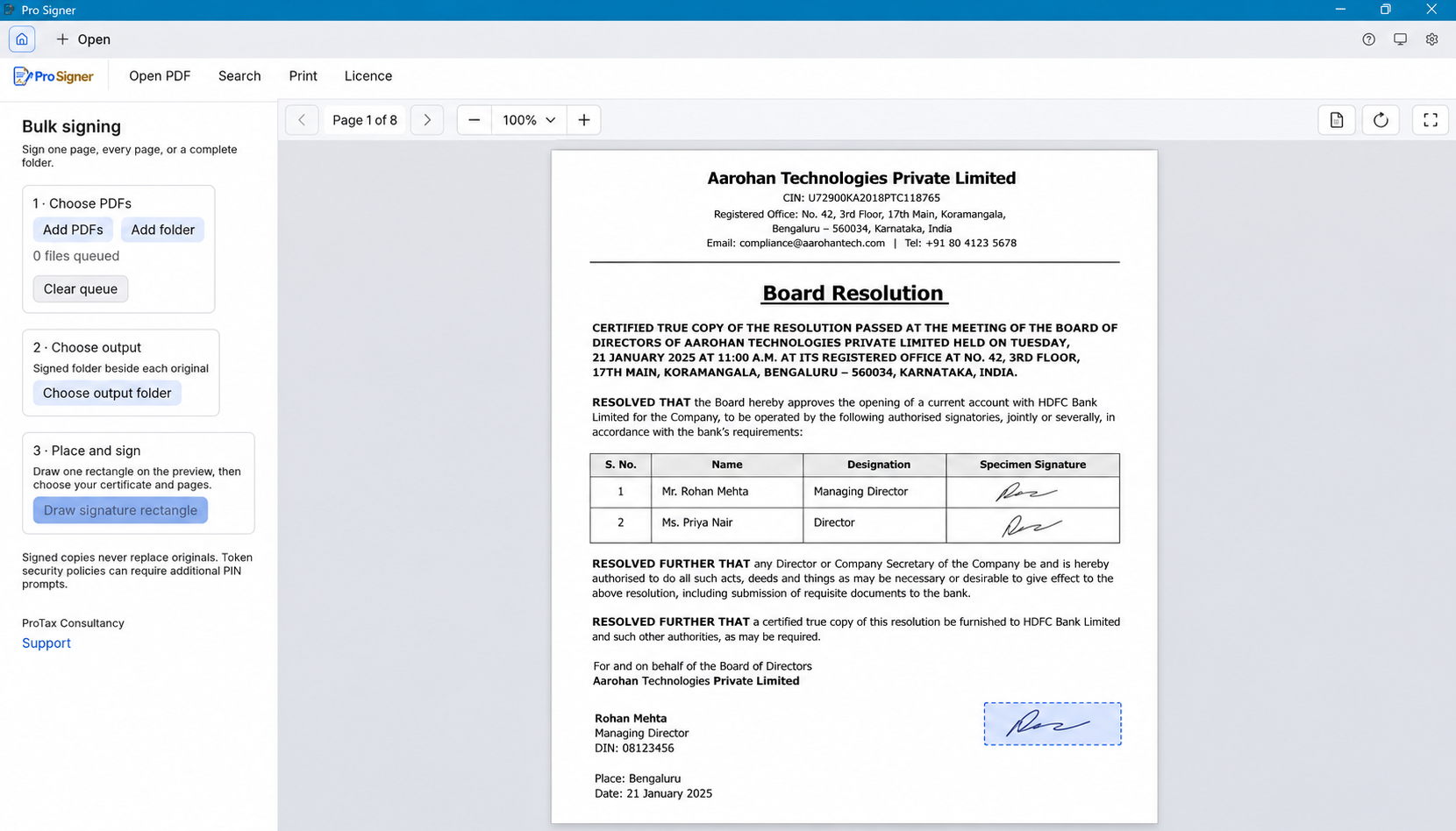
4. Review and run the batch
Check the certificate, file list, page selection and placement before starting. Enter the token PIN when requested. The aim is to avoid repeating the placement and file-opening work manually; the token's security policy can still require authentication prompts.
Pro Signer processes and signs PDFs locally on your computer and saves signed copies separately from the originals. Preserve both versions so that a correction can begin from the unsigned source.
5. Validate the signed output
Open the output in a PDF reader that supports certificate validation. Review the signature details, signer identity and any reported changes. Check every required page for placement, including pages containing tables, stamps or existing signatures.
Resolve validation warnings before submission. Certificate trust, validity and document changes need investigation; a visible box is not enough. Adobe describes checking signatures and previously signed document versions in its certificate signature guidance.
Where else can bulk PDF signing help?
The same repetitive work occurs outside a standard goods or works tender. The useful distinction is whether the recipient accepts digitally signed PDFs for the particular documents.
| Workflow | Documents to review | Where Pro Signer fits |
|---|---|---|
| Consultant or institutional empanelment | Application forms, experience records and supporting annexures | Processing accepted PDF submissions with repeated page-signing requirements; DMEO's RFP provides a specific example |
| Supplier onboarding and vendor registration | Declarations, acceptance forms and qualification records | Signing the PDFs that the buyer requires and accepts digitally |
| Contract acceptance and commercial documentation | Agreements, schedules, undertakings and amendments | Applying the authorised signer's DSC where the agreed execution process permits it |
| Accounting and finance document packs | Reports, statements, certificates and client deliverables | Signing final PDF files where the relevant professional and recipient requirements permit that method |
| Recurring business correspondence | Authorised letters and document sets sent to customers or counterparties | Handling several final PDFs in a batch instead of repeating file-by-file signing |
These are possible uses, not blanket signing obligations. For example, SEBI's March 2023 architectural consultancy tender called for pages to be filled, stamped and signed by an authorised person. That wording does not establish that any external DSC workflow will satisfy the requirement. Read the SEBI tender, General Terms and Conditions.
Statutory forms and professional certificates may have their own signing, verification or identification requirements. Bulk signing software does not replace those procedures, other parties' signatures, witnessing or notarisation.
Finish the portal submission after signing
Preparing a signed PDF does not submit a bid. Upload the correct files into the required covers and complete the procurement portal's own signing and submission steps.
The Government eProcurement portal's bidder instructions describe a separate Freeze Bid stage and a submission acknowledgement. They also explain that successful receipt does not certify the correctness of the documents. Save the final acknowledgement and the exact files submitted. Government eProcurement bidder instructions.
Checks that prevent avoidable rework
- Confirm the latest tender version and corrigenda before signing.
- Keep required financial information out of the technical cover.
- Check the authorised signer's certificate and supporting authorisation.
- Inspect signature placement on every required page.
- Verify that no files were skipped or failed during the batch.
- Validate the electronic signatures before upload.
- Finish the portal's submission procedure and retain its acknowledgement.
Avoid merging, converting or printing the signed output to a new PDF as a routine final step. Such processing can remove signature data or affect validation. Keep the original signed electronic files, and use the unsigned sources if changes are needed. Adobe recommends retaining unsigned copies and explains the restrictions that can apply after signing. Adobe's signed PDF guidance.
Questions about signing every PDF page
Can I sign every page without drawing the rectangle repeatedly?
Yes. Pro Signer lets you draw the signature rectangle once and apply the placement to the selected pages in a signing run. Review different page layouts before using one placement throughout.
Does signing one page leave the rest of the PDF unprotected?
A PDF digital signature validates the signed document revision; its scope is not limited to the page showing the signature box. A recipient can still require a visible signature or separate signing on each page. Follow the submission instructions rather than assuming one signature appearance satisfies them.
Will I need to enter the DSC PIN only once?
PIN behaviour depends on the token, driver and security settings. Pro Signer automates the repeated PDF workflow, but cannot promise one PIN prompt for every device or batch.
Can it replace the DSC utility required by a government portal?
Use the portal's required utility and submission process. Pro Signer prepares signed PDF files where that workflow is accepted; it does not replace portal login, bid encryption or final submission.
Make the next signing batch easier
If your team regularly signs tender annexures or other PDF packs page by page, review Pro Signer's Windows bulk DSC signing features. Choose the pages, set the signature area and process the files together. Contact ProTax through the product page to discuss your token setup or the number of computers you need.
For broader help assigning document-review responsibilities and approval processes, explore ProTax's Business Advisory support.
Photo: Pavel Danilyuk / Pexels, used under the Pexels licence.